
Step 1
Locate The Confirmation Email.
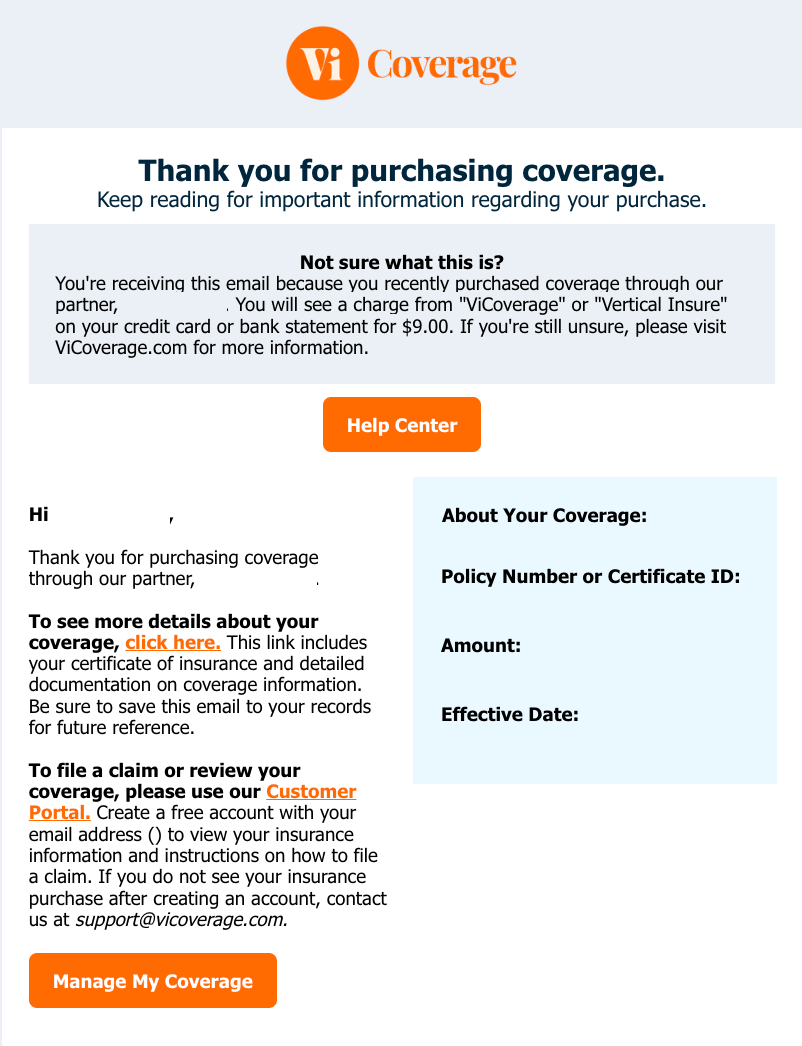
Locate the confirmation email (it may be hiding in spam or promotions) for your policy ID, certificate, and a link to the Customer Portal. If filing a claim, note what happened, keep receipts, and take photos.
Step 2
Log Into The Customer Portal.
Log into customers.vicoverage.com with the email used at purchase. Create an account if it’s your first time. Once inside, view all active and expired policies and check your coverage details.
Tip: If you’re unsure which email you used, search your inbox for the welcome email from “ViCoverage.” Still unsure? Reach out to support@vicoverage.com.

Step 3
Start The Claims Process.
If your situation falls under a covered reason, begin the claims process by choosing your policy in the Portal. Click to file a claim, complete the short form, and upload receipts or photos if requested.

Step 4
Track Your Claim.
Follow your claim status in the Portal. Our team reviews all claims promptly and may request more details. Response times vary depending on complexity.
Running into Troubles?
If you can’t locate your confirmation email, don’t see your policies, or have questions, our support team is always here at support@vicoverage.com.
Customer Portal
The easiest way to view your policies or begin the claims process.